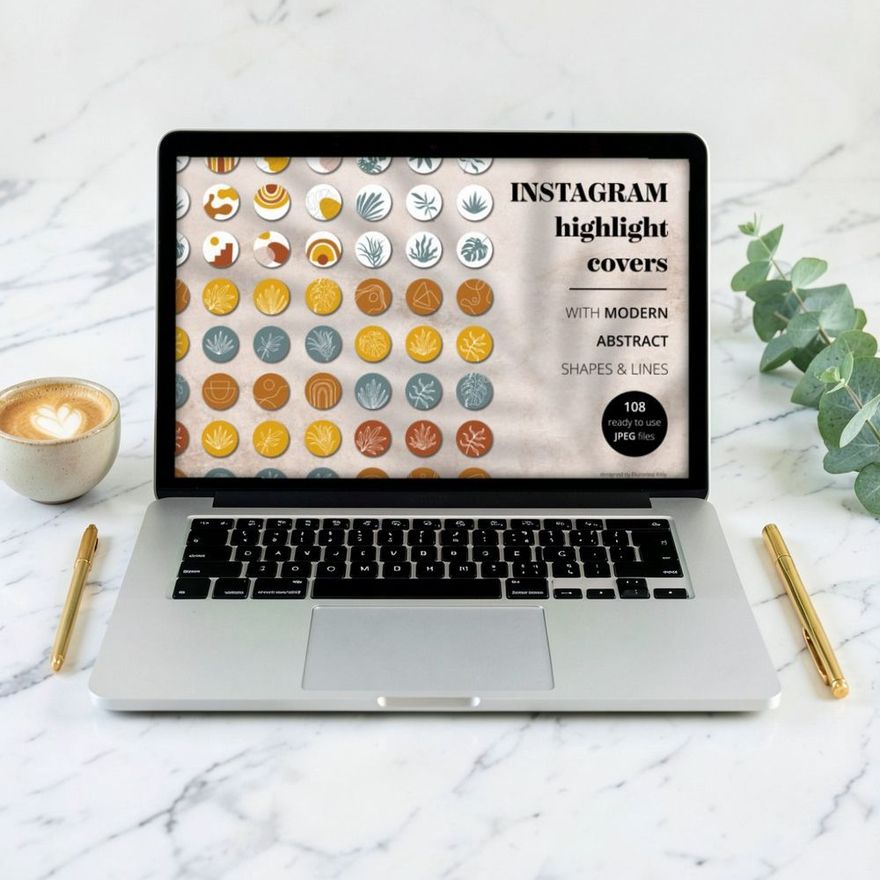
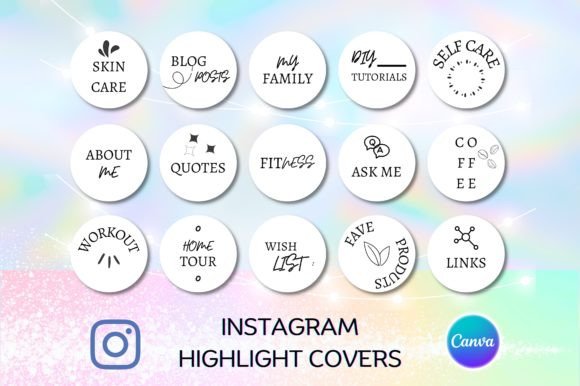
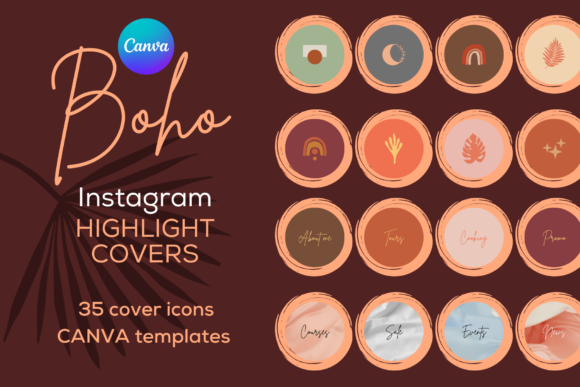
You can set a highlight cover straight from your camera roll, and the image never shows up in your story or inside the highlight. Tap and hold the highlight, tap "Edit highlight", then "Edit cover", pick the image from your phone, position it in the circle and save. Once the images are on your phone, each highlight takes only a few taps.
The older workaround, posting every cover as a story and then adding it to the highlight, is not needed anymore. The steps below are for the Instagram mobile app, and the quoted button names are the ones Instagram's Help Center uses at the time of writing. Labels shift a little between app versions and between iPhone and Android, so each step also says what to look for.
One thing differs from account to account: where the highlights are. The Help Center still describes them as a row of circles below the "Edit profile" button. Since late 2025, Instagram has also been moving highlights into a tab of their own beside the posts on some profiles. The editing steps are the same in both layouts; only the place you find the highlight changes.
Get the Covers Onto Your Phone First
A highlight cover is an ordinary image file, usually a PNG or a JPG. Instagram picks it from your photo library, so the files have to be there before you start.
- Downloaded set as a ZIP. Unzip it on a computer, or in the Files app on your phone, then save the images to your photos.
- Canva template. Export the pages as images first. The steps are in the guide to customizing highlight covers in Canva.
- Many covers at once. Put them in one album named something like "Covers". The picker shows recent photos first, and an album saves scrolling when you come back in a month.
If you are still choosing a set, look for a plain style with a clear icon for each of your categories. These three are the kind of clean, single-style sets that work on almost any profile.
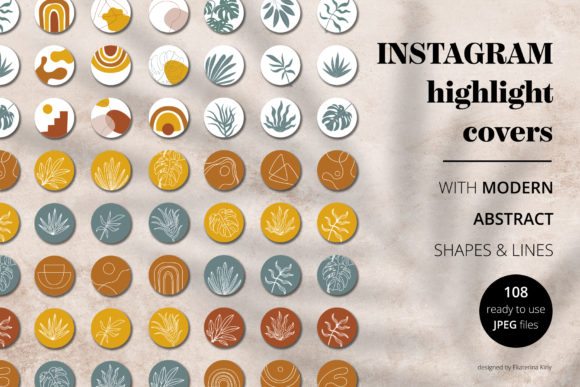
Modern Instagram Highlight Covers
See the listing ↗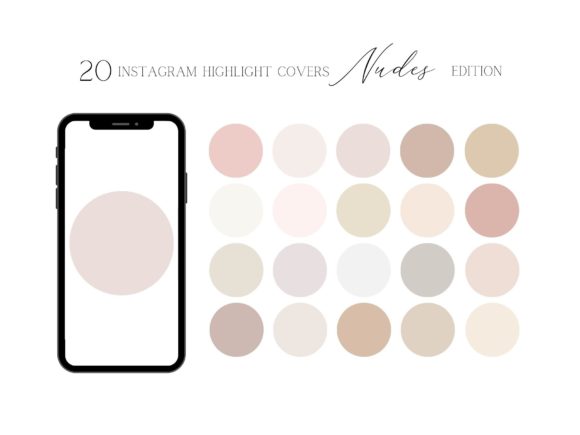
Nude Highlight Covers for Instagram
See the listing ↗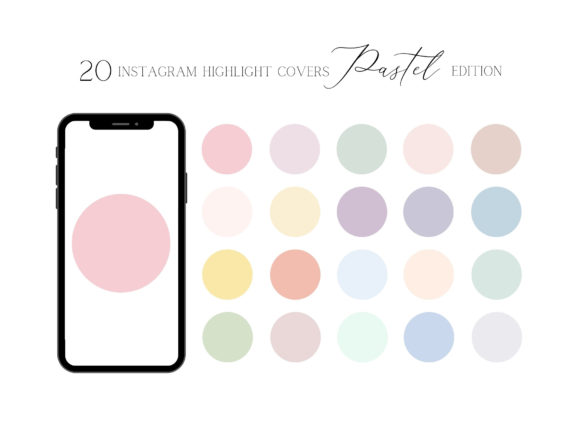
20 Pastel Highlight Covers for Instagram
See the listing ↗From the collection Instagram Highlight Covers. New Creative Fabrica members get 10 free downloads, and any of these can be one of them.
Change the Cover of an Existing Highlight
- Go to your own profile.
- Tap and hold the highlight until a menu appears, then tap "Edit highlight". You can also open the highlight, tap "More" in the bottom right and choose "Edit highlight" there.
- At the top of the edit screen you see the current cover in a circle with an "Edit cover" label under it. Tap it.
- Along the bottom is a strip of thumbnails: the stories already in the highlight, and before them, at the left end, a small picture icon that opens your photo library. Tap that icon.
- Choose the cover image from your library.
- Pinch to zoom and drag until the icon sits in the middle of the circle.
- Confirm with "Done", then confirm once more on the edit screen so the change is saved.
That is all. The image is used as the cover only. It is not added to the highlight as a story, and nothing is shared with your followers.

Position the Icon Inside the Circle
Instagram shows the cover as a small circle, so what matters is the middle of your image. When the picker opens, the circle is laid over the picture and everything outside it is dropped.
Zoom in just enough that the icon fills roughly half of the circle. Smaller than that and it turns into a dot on the profile. Larger, and the edges of the icon touch the rim and look cramped. Then use the same zoom on every cover in the row, because uneven icon sizes are the first thing people notice.
If the picture cannot be zoomed out far enough to fit, the icon was drawn too large on the canvas. The fix is in the file, not in the app: see the highlight cover size and safe zone guide.
Set all your covers in one sitting. It is much easier to match the zoom from one cover to the next when you did the previous one thirty seconds ago.
Add a Cover While Creating a New Highlight
- On your profile, tap "New" in the highlights row. If you do not see "New", the Help Center says to look for an option called "Story highlight" instead.
- Instagram opens your story archive. Select at least one story and tap "Next".
- On the next screen, type the highlight's name and tap "Edit cover".
- Tap the picture icon, choose the cover from your photo library, position it and confirm.
- Finish with "Add" on iPhone or "Done" on Android, in the top right.
You can also start from a story that is live right now. Open it and look at the bottom right: on Android there is a "Highlight" button, and on iPhone it sits behind "More". Tap it and create a new highlight from there. The cover will be a frame from that story until you change it with the steps in the previous section.
What to Do When the Archive Is Empty
A highlight cannot be empty. It needs at least one story, and if you remove the last story, the highlight disappears with it. So on a brand-new account, the order is: post a story, add it to a highlight, then set the cover.
Two things help here:
- Check that the story archive is on. It normally is: Instagram saves stories to the archive by default. To make sure, open the menu on your profile, go to "Your activity", then "Archived", open the options and then "Settings", and look for "Save story to archive". With it on, every story you post stays available for highlights after its 24 hours are up. With it off, stories are deleted when they expire, and you can only add ones that are still live.
- Plan one real story per highlight. A photo of your workspace for "About", a product shot for "Shop", a screenshot of a kind message for "Reviews". One good story is enough to open a highlight, and you can add more whenever you post. The ceiling is far away: guides that track Instagram's limits put it at 100 stories per highlight.

Swap Covers Later
Covers are not permanent. Repeat the steps for an existing highlight and pick a different image; the old cover is replaced and the stories inside are untouched.
A few practical notes for a full restyle:
- Change every cover in the row in the same session, so the profile does not sit half-updated.
- Keep the files. If you later want the same icon with a different zoom, you will need the original image again.
- If you are switching to a bigger set with spare icons, keep the unused ones in the same album. A new highlight next season then matches the rest. Sets with a high count in the name leave the most room for that.
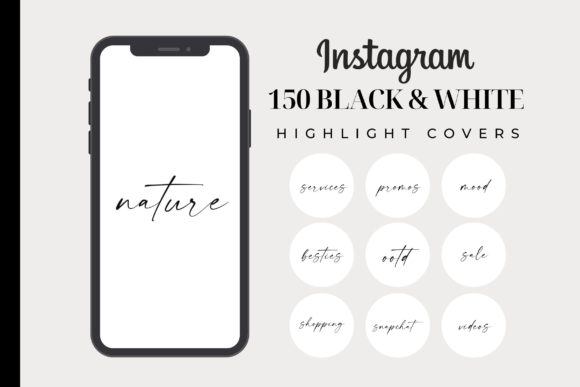
150 Black and White Instagram Highlight
See the listing ↗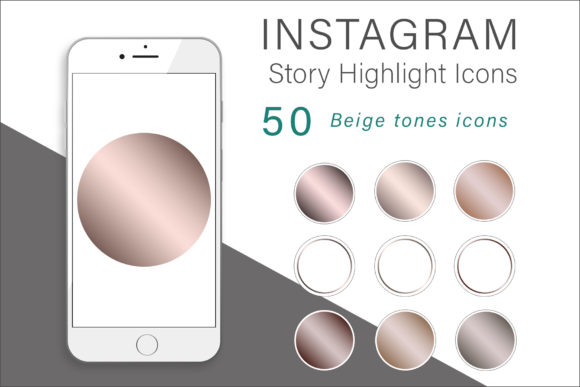
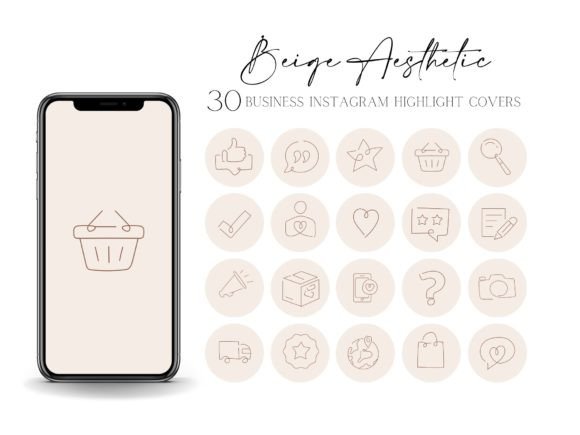
Beige Tones Instagram Highlights Icons
See the listing ↗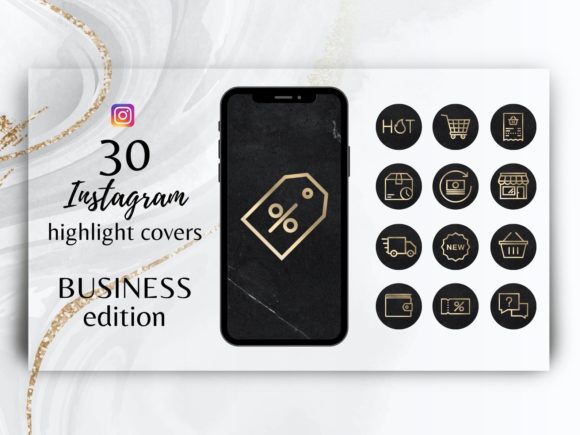
Black and Gold IG Highlight Covers
See the listing ↗From the collection Black & Neutral Highlight Covers. New Creative Fabrica members get 10 free downloads, and any of these can be one of them.
If Something Looks Wrong
- The cover is blurry. The image is too small or you zoomed in a long way. Use a file at least 1080 pixels wide, which is the widest Instagram keeps a photo according to its Help Center, and an icon that needs only a little zoom.
- The icon is cut off at the edge. Open the cover editor again and zoom out, or re-center by dragging.
- There is no option to edit the cover. Update the app, and make sure you are in the mobile app on your own profile. The Help Center's instructions for creating and editing highlights are written for the Android, iPhone and iPad apps, not for a computer.
- The cover is not a circle. On profiles where highlights have moved to their own tab, people report the covers showing as taller thumbnails. A cover with the icon in the center and a background that fills the whole image holds up in both shapes.
- The cover looks fine to you and dull to a friend. Instagram has a light and a dark mode (on iPhone it follows the phone's own setting), and the profile background is white in one and black in the other. A cover with its own solid background color looks the same in both.
- The picture icon shows no photos. Instagram needs permission to read your photo library. Check the app's permissions in your phone settings.
Finish the Row
With covers in place, two things remain. Give each highlight a short name that fits under the circle, and put the row in an order that makes sense to a first-time visitor; the guide to organizing and reordering highlights covers both.
Then open your profile the way a stranger would and look at the row for two seconds. If every circle is the same style and you can tell what each one holds, the job is done. If one cover stands out, it is nearly always the zoom or a mismatched background, and both take a minute to fix. For more styles to compare, browse the full Instagram highlight covers collection.
Cover Sets Related to This Guide
 Instagram Highlight Covers13 hand-picked · open the collection →
 Aesthetic Highlight Covers13 hand-picked · open the collection →


